Command Line Interface (CLI)
The primary mode of interaction with Exosphere is through its rich command line interface (CLI). The CLI is designed to be reasonably intuitive, but also discoverable, allowing users to explore available commands and options interactively.
Basic Usage
The CLI itself has two main modes of operation:
- Normal Mode
This is the default mode where you can run exosphere commands directly as arguments to the exosphere command.
- Interactive Mode
You can enter an interactive shell by running
exospherewithout any arguments. In this mode, the prompt will change toexosphere>and you can run commands interactively. Exosphere will function like a REPL or Shell. You can exit withexitorquit.
Tip
All commands can be run in either mode, but interactive mode is particularly useful for exploring commands as well as toggling back and forth between the Text User Interface (TUI) and the CLI.
Getting help
You can explore the root commands available by running exosphere --help or typing help
in the interactive shell. This will show you a list of available commands and their descriptions.
For a complete list of commands and options, see the CLI Command Reference page.
Initial Inventory Discovery
The first time you run Exosphere after populating your configuration file with options and hosts, you should perform a Discovery operation.
This operation will connect to each host and attempt to detect what platform, operating system, flavor, version and package manager it is using.
It will then assign the appropriate provider to that host, which will allow Exosphere to query and refresh its package update status from here on.
If a host is present in the inventory, but not currently supported by Exosphere, it will be marked as such, and left available for Online checks. You will not be able to perform refresh or repo sync operations on them, and display panels will omit update information for them.
If a host is present in the inventory, not supported by Exosphere and also fails discovery due to not being a Unix-like operating system, it will return an explicit error, and should be removed for smooth operation.
For more details, see the Supported Remote Platforms page.
Inventory discovery can be done by running:
exosphere> inventory discover
Any errors will be printed to the console as well as the log file.
Tip
You can find out where the log file is located on your system by running:
exosphere> config paths
You can find the path under the Log: section of the output.
Refreshing Update Status
Once you have discovered your hosts, you can refresh their update status by running:
exosphere> inventory refresh
This will connect to each host in parallel, and fetch what updates are available, categorizing them, and storing the metadata in the cache file.
If you want to also synchronize the repositories on each host to ensure the latest package lists are available, you can run:
exosphere> inventory refresh --sync
This will run the appropriate package manager command to update the repositories on each host, before fetching the update status.
Note
The --sync option may require elevated privileges (sudo) on some platforms.
See the Connections and Privileges page for more details on how to configure this.
This operation may also take quite a long time, depending on the number of
hosts and their specifications, as well as the network speed.
You can also do it all at the same time, including discovery, by running:
exosphere> inventory refresh --discover --sync
Viewing Inventory Status
The main command for viewing the status of your inventory is:
exosphere> inventory status
This will display a table of all hosts, their status and how many updates they have available.
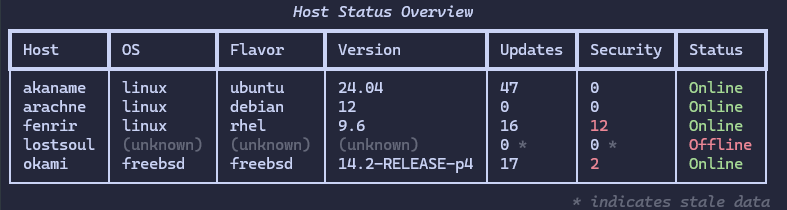
You can also select one or more specific hosts by providing their names as arguments:
exosphere> inventory status host1 host2
This will show the status for only those hosts, allowing you to focus on specific systems.
You can also filter the output to only show hosts with available updates by
using the --updates-only or --security-only flags:
exosphere> inventory status --updates-only
exosphere> inventory status --security-only
If this results in no hosts matching the criteria, Exosphere will print a message and exit with code 3.
Viewing Host Details and Updates
To view detailed information about a specific host, including a detailed list of available updates, you can run:
exosphere> host show <hostname>
This will display detailed information about the host, including all of the useful metadata. This includes the last refresh timestamp, which provider it is using, etc.
It also will display a table of all available updates.
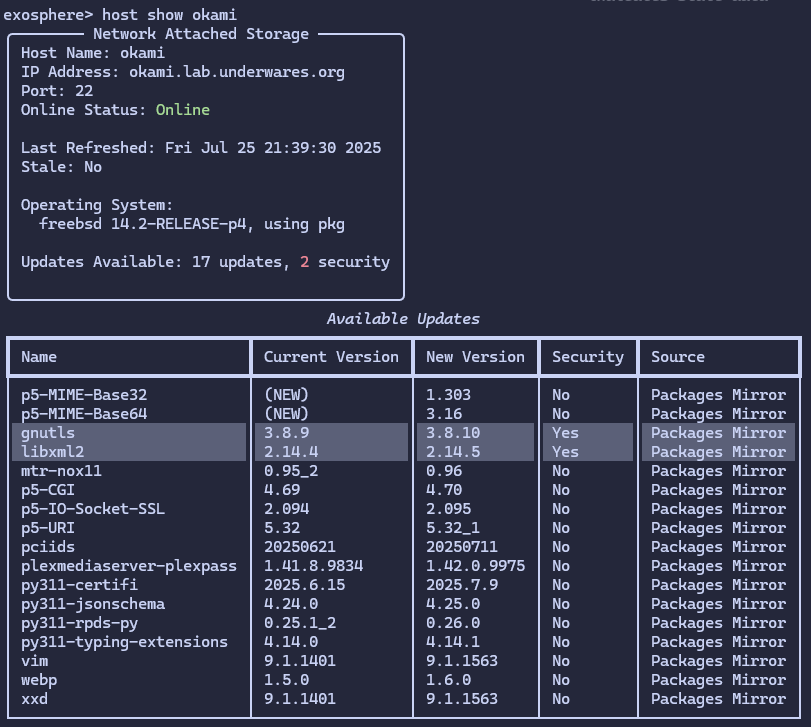
Security updates are highlighted by default. You can also filter the updates
via --security-only to only show security updates, or --no-updates to
refrain from showing the table entirely.
Tip
The host command is quite versatile and also lets you perform operations
such as refresh on a specific host. See the
host commands for more details.
Online Checks
You can perform a quick online check to see if all your hosts are responding by running:
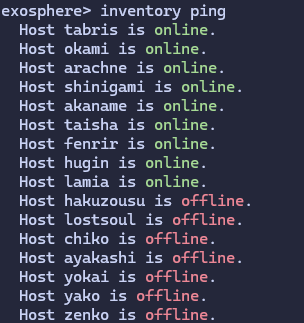
exosphere> inventory ping
This will attempt to SSH into each host and check if it is online. If a host is not reachable, it will be marked as offline and an error will be printed.
This is not an ICMP ping, but rather a full SSH connectivity check. It will only return “Online” if the host can be connected to successfully, and a trivial test command can be executed.
It can be a good way of validating connectivity to hosts. If ping returns “Online” for all hosts, you can be certain your SSH connectivity is working within the context of Exosphere.
This is by design to avoid scenarios where a host is reachable but not fully operational, for instance mid-startup or mid-shutdown, which would cause subsequent queries or operations to fail.
Hosts marked as Offline will be skipped in most operations such as refresh
for performance reasons. You can invoke Ping to refresh this status at any time.
Viewing Configuration details
Exosphere makes it easy to answer questions about where it sourced its configuration from, what the current active configuration is, and what has been changed from the defaults.
You can view the path to the configuration file that was loaded by running:
exosphere> config source
You can view the currently active configuration for Exosphere by running:
exosphere> config show
If you also wish to see the contents of the inventory, you can supply the
--full option.
You can also show exclusively the configuration options that have been changed:
exosphere> config diff
The output will include what the default value originally was.
Viewing the state of SSH connections
If you have SSH Pipelining enabled, you can view the current state of the SSH connection pool by running:
exosphere> connections show
This will display the currently open SSH connections, their age, and which hosts they are connected to, as well as tell you when they will be reaped.
You can manually close them with the following command:
exosphere> connections close
Both of these commands can take arguments, including specifying particular hosts. See the built in –help argument output for details.
If you do not have SSH Pipelining enabled (the default), connections are automatically closed after each operation, so these commands will have no effect.
Launching the Text-based User Interface
You can launch the text-based user interface (TUI) by running:
exosphere> ui start
This will start the TUI, which provides a more interactive way to view and manage your inventory. You can navigate through the menus and perform operations using friendly shortcut keys displayed at the bottom of the screen.
An interesting feature of starting the TUI from the interactive shell like this is that you can switch back and forth between them seamlessly.
Once you exit the TUI, you will be returned to the exosphere> prompt,
allowing you to run more targeted or specialized commands.
Tip
An interesting feature of the TUI is that it also gives you easy access to logs, and includes a nice built-in scrollable viewer.
For more details on the TUI, continue on to the Text User Interface (TUI) page.
Return Codes
Exosphere uses specific return codes to indicate the outcome of commands. Key return codes are typically:
0: Success - The command completed successfully without any issues.
1: Execution Error - An error occurred during the execution of the command.
2: Argument Error - There was an issue with the provided arguments or options.
3: Special - A condition was met, not necessarily an error
The special return code (3) is used very deliberately and is intended to assist with scripting and automation, where you need to differentiate between errors and specific conditions.
For instance, exosphere version check will return 3 if updates are available,
and the various --updates-only filters on inventory status will also
return 3 if no hosts matched what you requested.
Commands returning 3 will typically inform you of the meaning in their help text.
Beyond the Basics
Every command offers exhaustive built in documentation. Feel free to explore
the available commands and options with the --help flag, or by running
help in the interactive shell.
For advanced, file based reporting, see the Reporting and JSON Export page.
A complete CLI Command Reference is also available, which provides a comprehensive list of all the commands and their options.